
Appearance
WhatsApp Connection Setup Guide
This document will guide you through the steps to integrate WhatsApp with our platform. The integration requires credentials from your WhatsApp Business account and webhook setup.
1. What You Need Before You Start
- A verified WhatsApp Business Account (WABA)
- Access to Meta Business Manager
- Webhook endpoint to receive events
- The following credentials from Meta App:
- Client ID
- Client Secret
- Access Token
- Business Account ID
- Verified Phone Number with country code
Get Your Client ID and Client Secret
- Go to the Meta for Developers Dashboard: https://developers.facebook.com/apps
- Select your App or create a new one.
- Go to Settings > Basic to find your Client ID and Client Secret*.
- Copy these values to be used in the settings form.
2. Fill in WhatsApp Settings Form
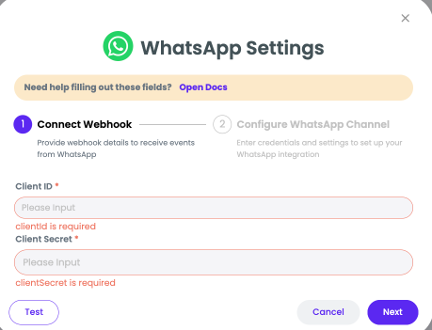
Step 1: Connect Webhook
- Client ID: Paste the App ID
- Client Secret: Paste the App Secret
- Click Test to verify the connection
- Click Next to proceed
Step 2: Configure WhatsApp Channel
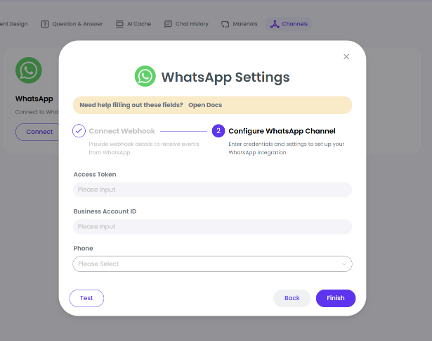
You will be prompted to enter the following:
- Access Token: Generate it from Meta > WhatsApp > Getting Started. Ensure the token has whatsapp_business_messaging and whatsapp_business_management permissions.
- Business Account ID: Found in the same WhatsApp section.
- Phone: Enter your verified WhatsApp phone number including the country code (e.g., +90xxxxxxxxxx for Turkey).
Step 3: Configure Webhook & Phone Number
- Go to WhatsApp > Configuration in Meta Business Manager
- Set the webhook callback URL (provided by your platform)
- Subscribe to the following events:
- messages
- message_status
- Add your phone number and verify it inside WhatsApp Manager
Step 4: Final Test
After saving all credentials, click 'Test'. If successful, your WhatsApp integration will be activated.
Frequently Asked Questions (FAQ)
Q: Where do I get my Business Account ID?
A: In Meta Business Manager under your app’s WhatsApp product settings.
Q: What if my test fails?
A: Make sure your Client ID, Secret, Access Token, and Business ID are correct, and your app is live.
Q: Is webhook verification manual?
A: No, the platform automatically handles webhook verification.
Need Help?
Helpful resources:
- WhatsApp Business Platform: https://www.whatsapp.com/business/platform/
- Meta App Setup Guide: https://developers.facebook.com/docs/development/create-an-app/
- WhatsApp Integration Docs (n8n): https://docs.n8n.io/integrations/builtin/credentials/whatsapp/
- Meta Webhook Documentation: https://developers.facebook.com/docs/graph-api/webhooks/