
Appearance
Slack Bot Application Setup Guide
This guide walks you through creating and configuring a Slack bot application from scratch.
1. Create a New Slack App
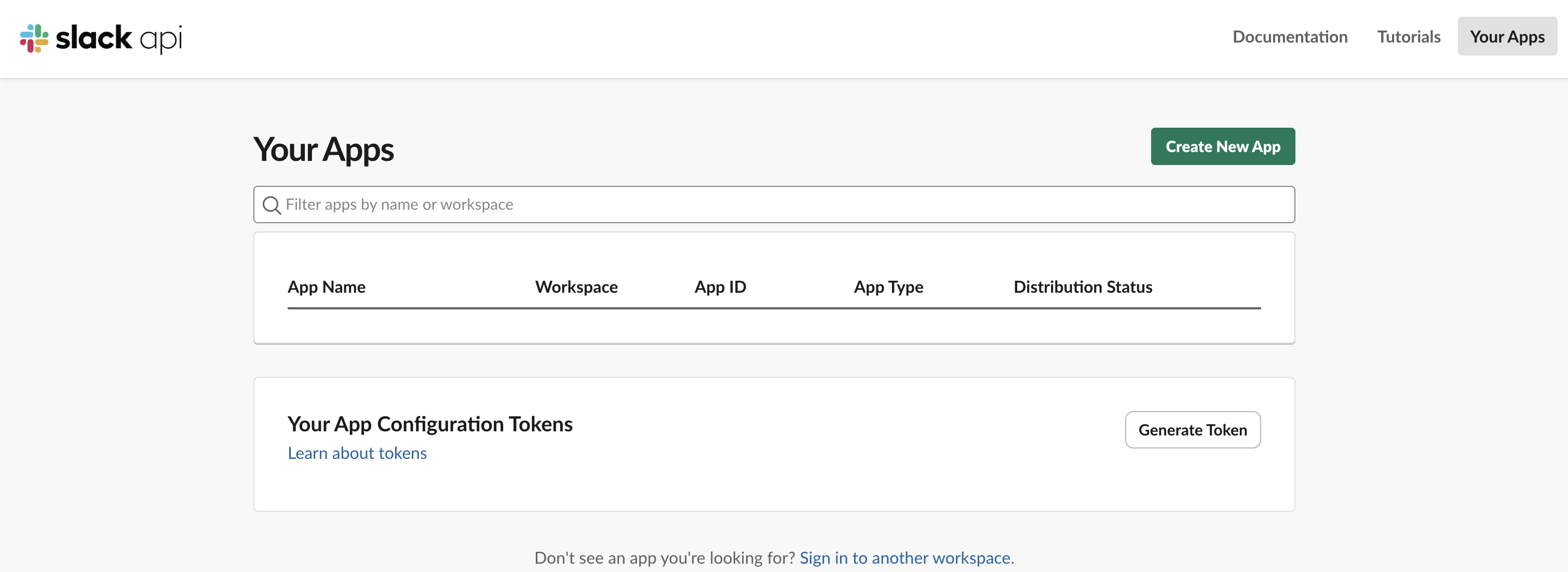
Go to the Slack Apps page:
Click Create New App.
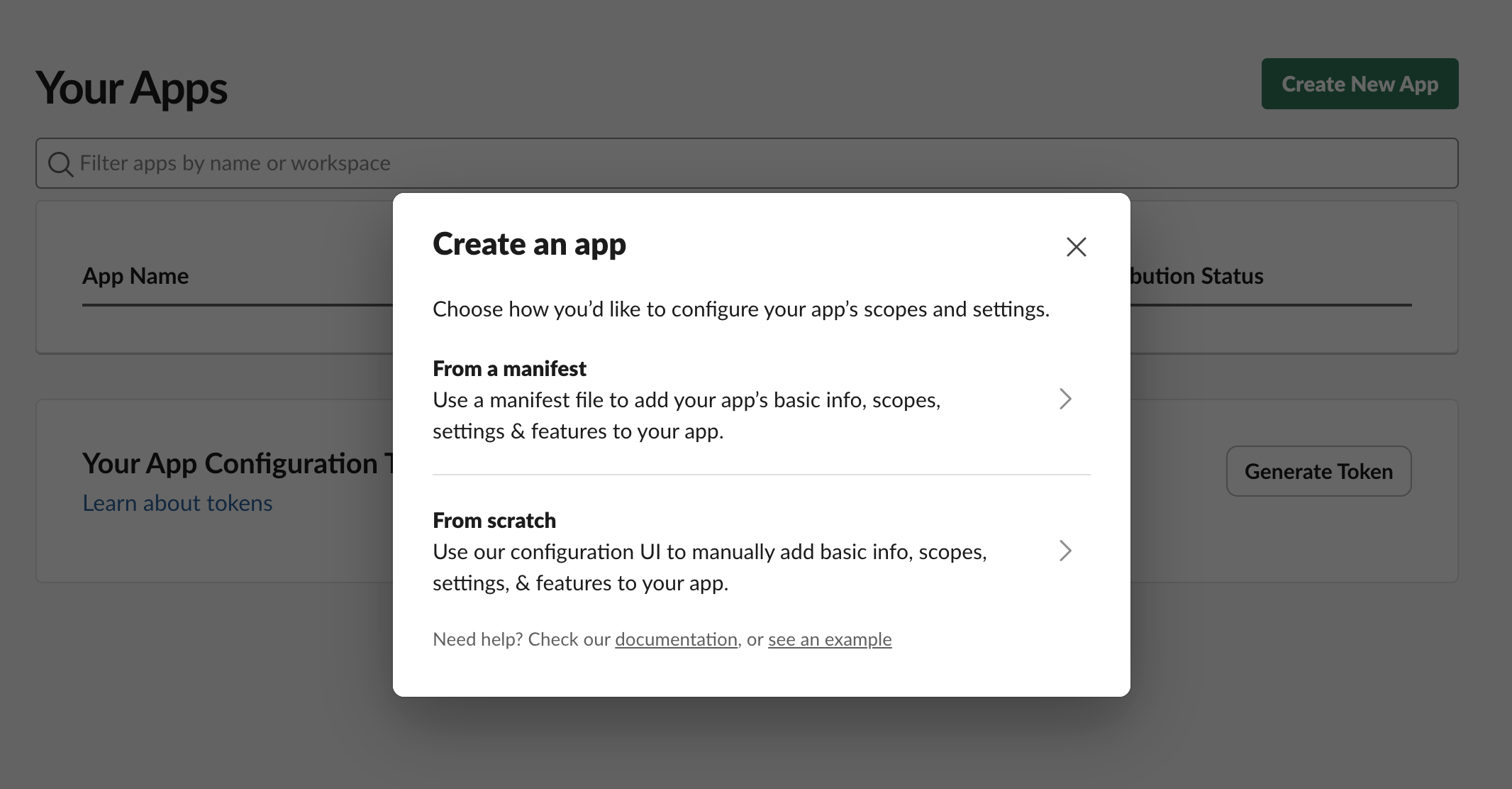
Select From scratch.
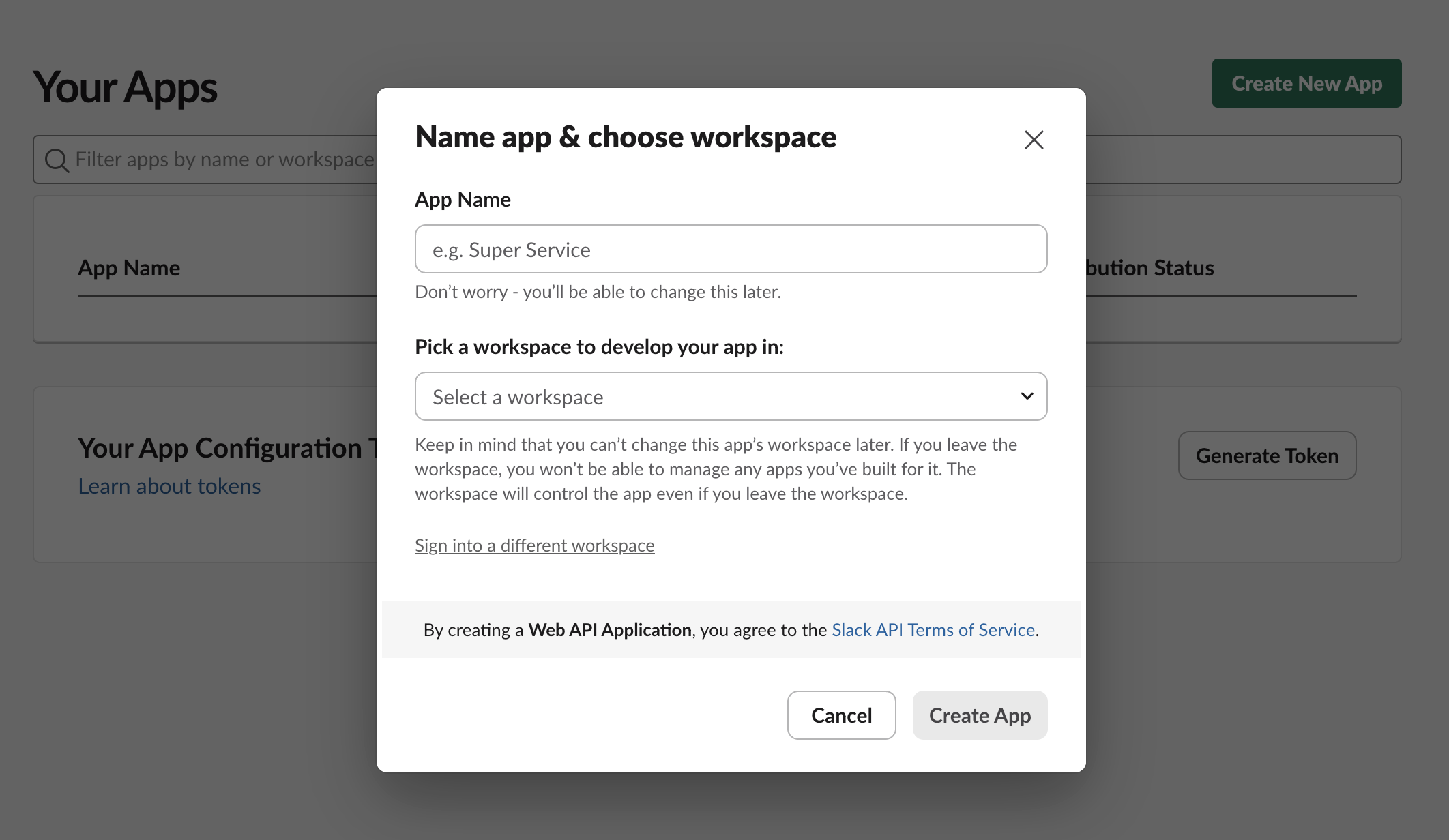
Enter the App Name (this will be your bot’s name).
Select the Workspace where the app will be installed.
⚠️ The workspace must already exist.
Click Create App.
2. Enable Event Subscriptions
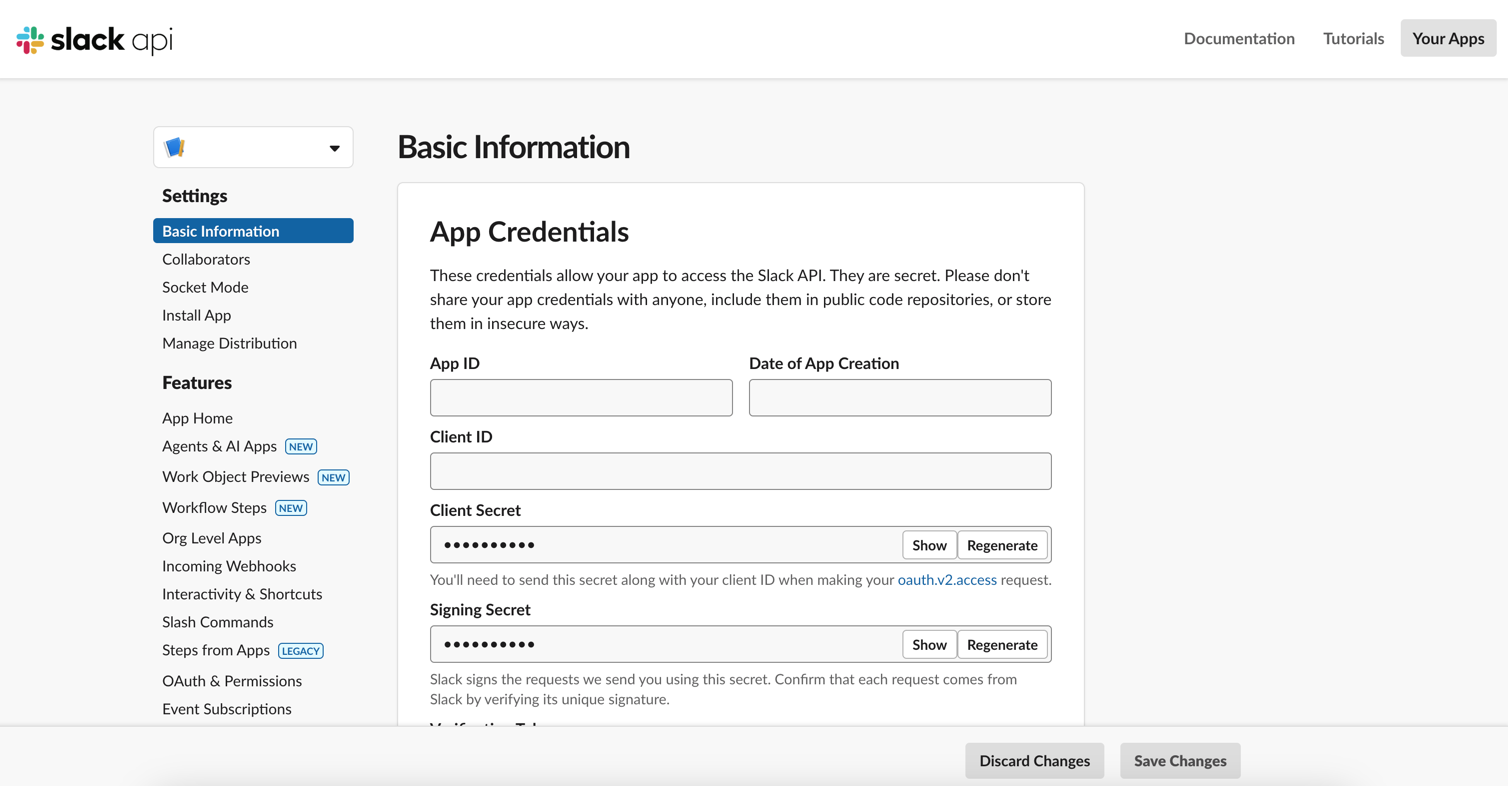
After creating the app, you will be redirected to the app settings page.
From the left sidebar, click Event Subscriptions.
Enable Event Subscriptions.
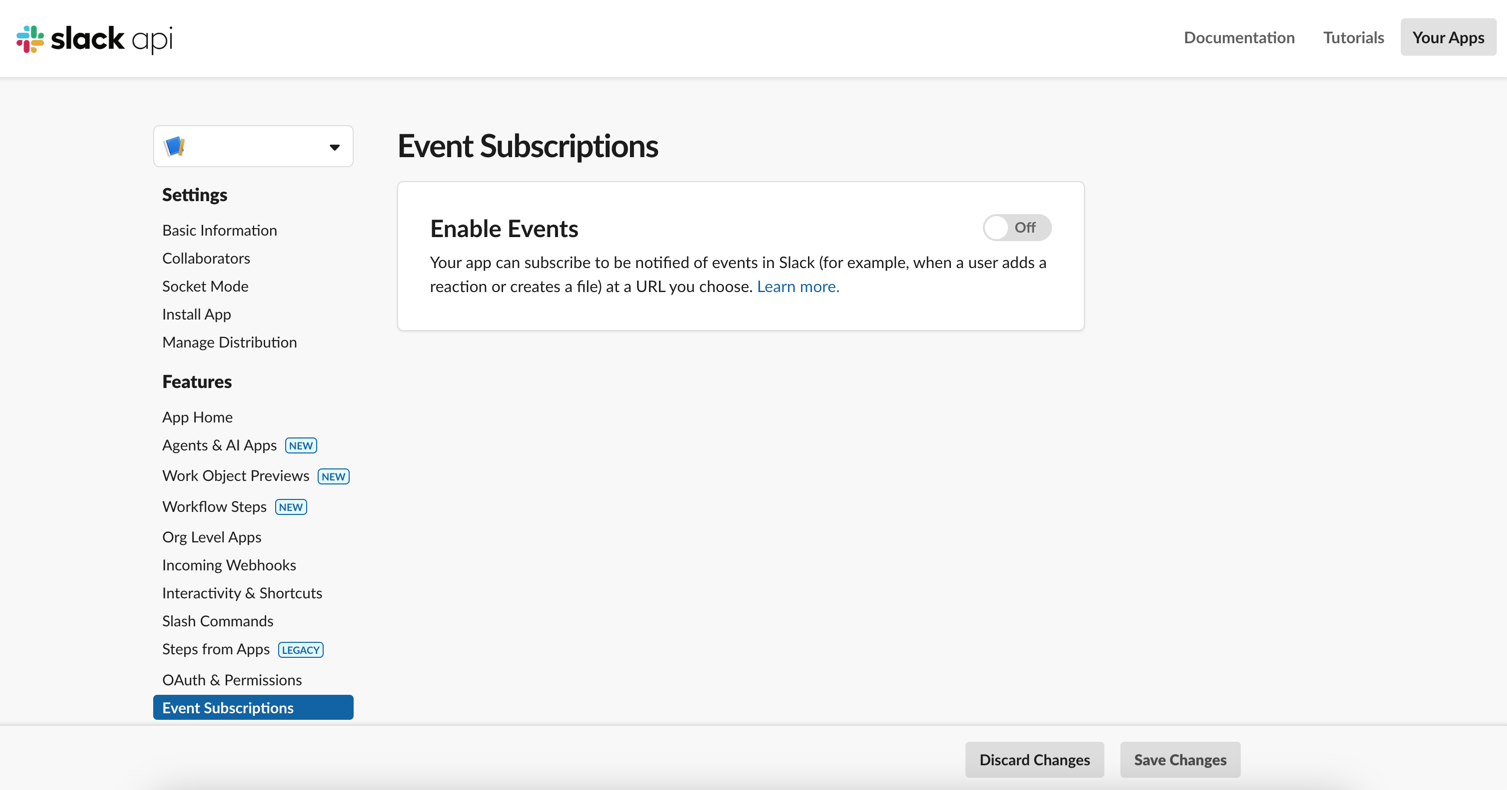
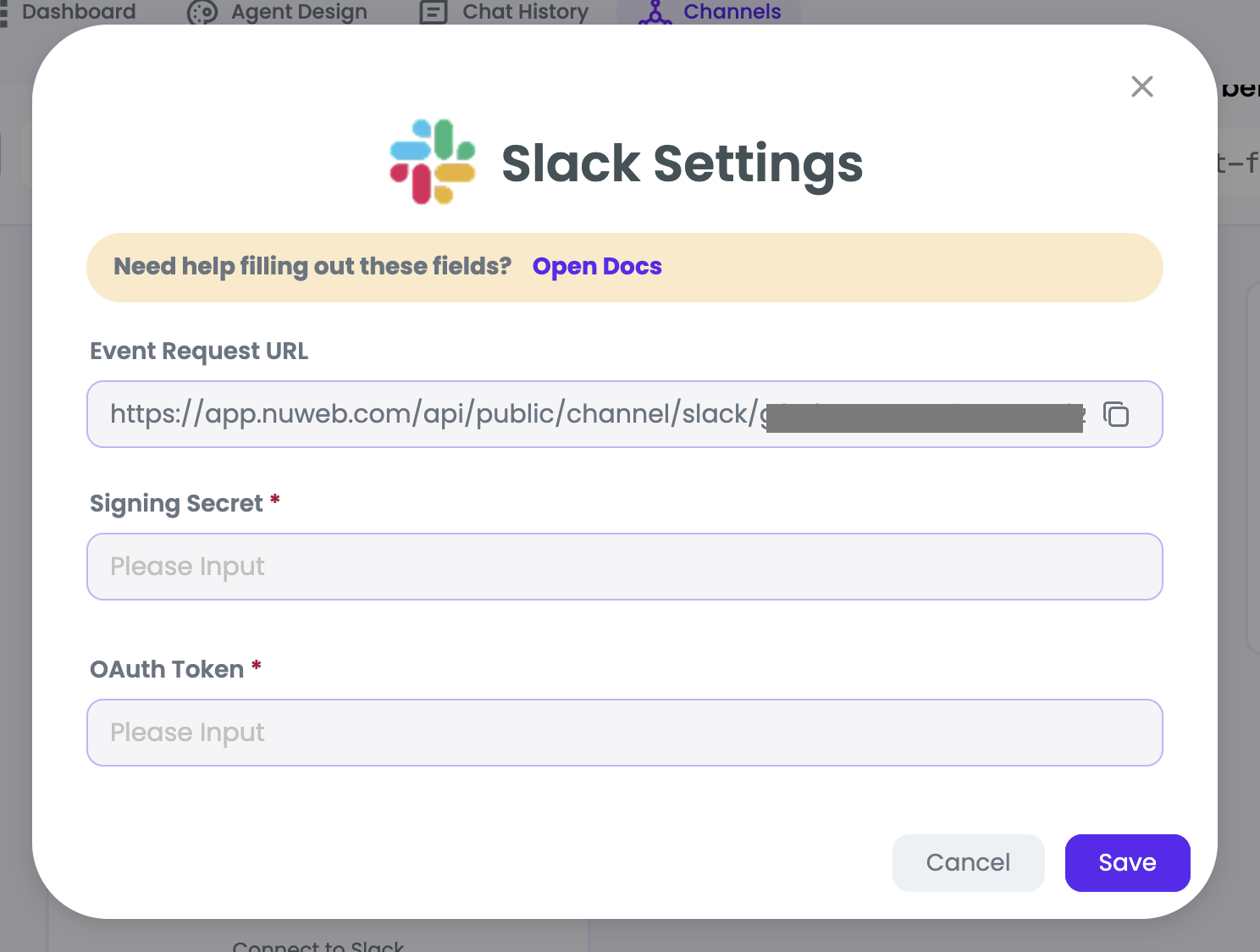
In the Request URL field, enter the URL starting with:
https://app.nuweb.com/api/channel/slack/XXXXXXXXXXXX/eventsThis URL should be copied from the modal that opens in your application.
On the same page, add the events shown in the screenshot.
Click Save Changes at the bottom-right corner of the page.
Add the following Subscribe to bot events:
 member_joined_channel   # A user joined a public channel, private channel or MPDM.
 member_left_channel     # A user left a public or private channel
 message.channels        # A message was posted to a channel
 message.groups          # A message was posted to a private channel
 message.im              # A message was posted in a direct message channel
 message.mpim            # A message was posted in a multiparty direct message channel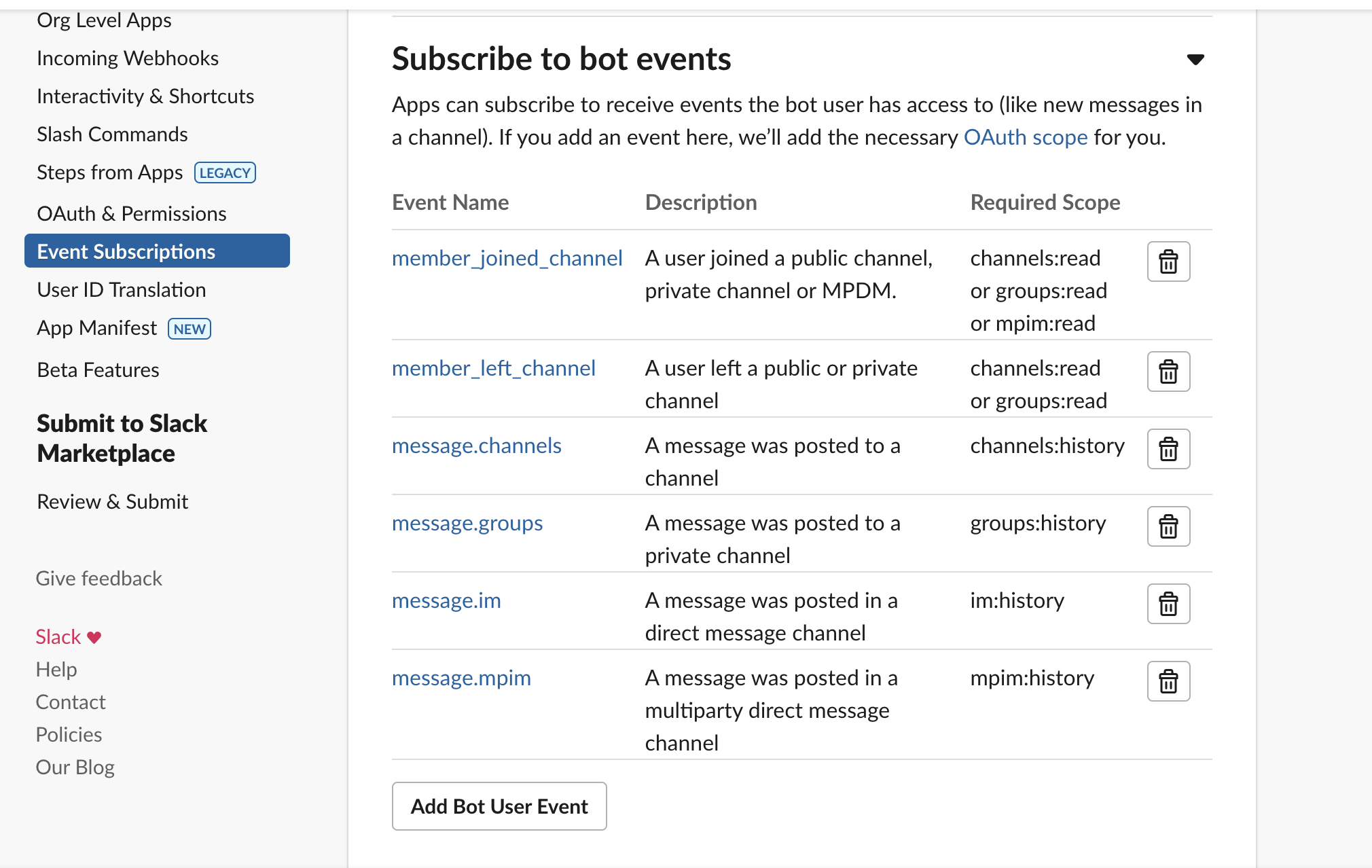
3. Configure OAuth & Permissions
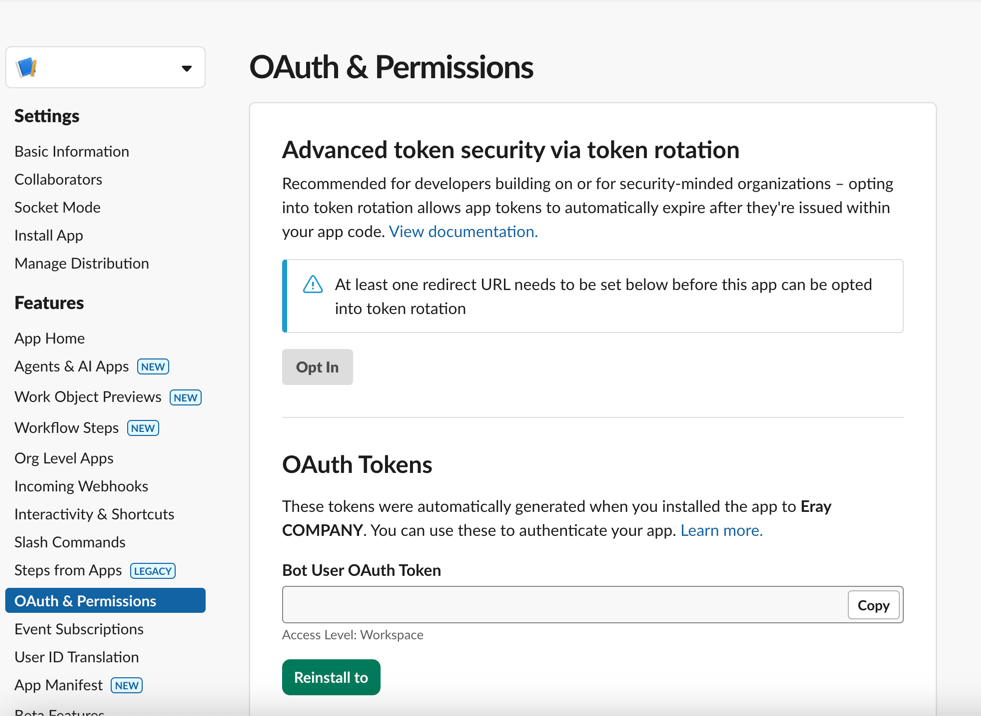
From the left sidebar, click OAuth & Permissions.
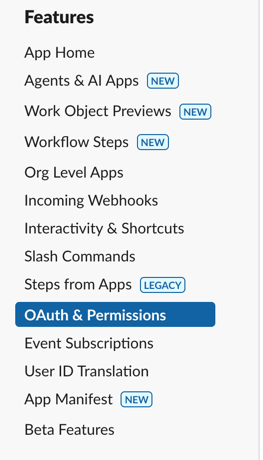
Under Scopes, add the following Bot Token Scopes:
channels:history     # View messages and content in public channels the bot is added to
channels:read        # View basic information about public channels
chat:write           # Send messages as the bot
groups:history       # View messages and content in private channels the bot is added to
groups:read          # View basic information about private channels
im:history           # View direct messages the bot is added to
mpim:history         # View messages in group direct messages
mpim:read            # View basic information about group direct messages
users:read           # View people in a workspace
users:read.email     # View email addresses of users
Make sure channels:read , users:read.email are included in the scopes list.
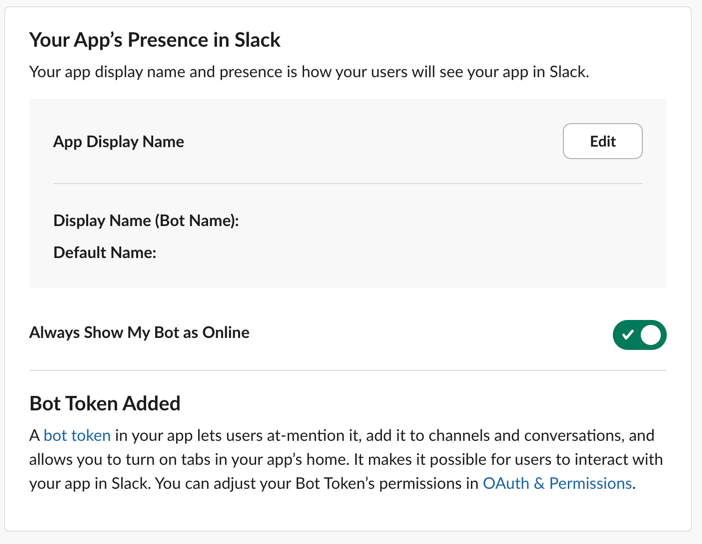
4. Bot Settings
Enable Always show my bot as online.
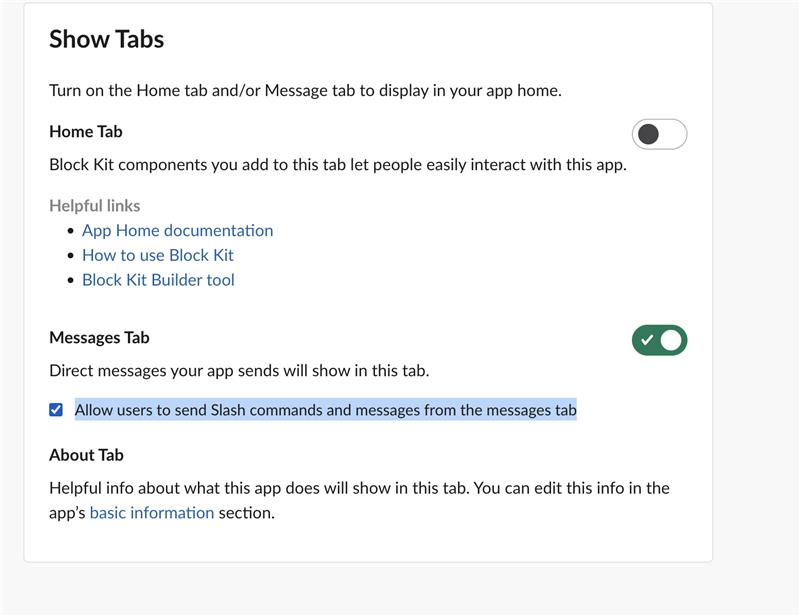
Check the Allow users to send Slash commands and messages (or equivalent) checkbox.
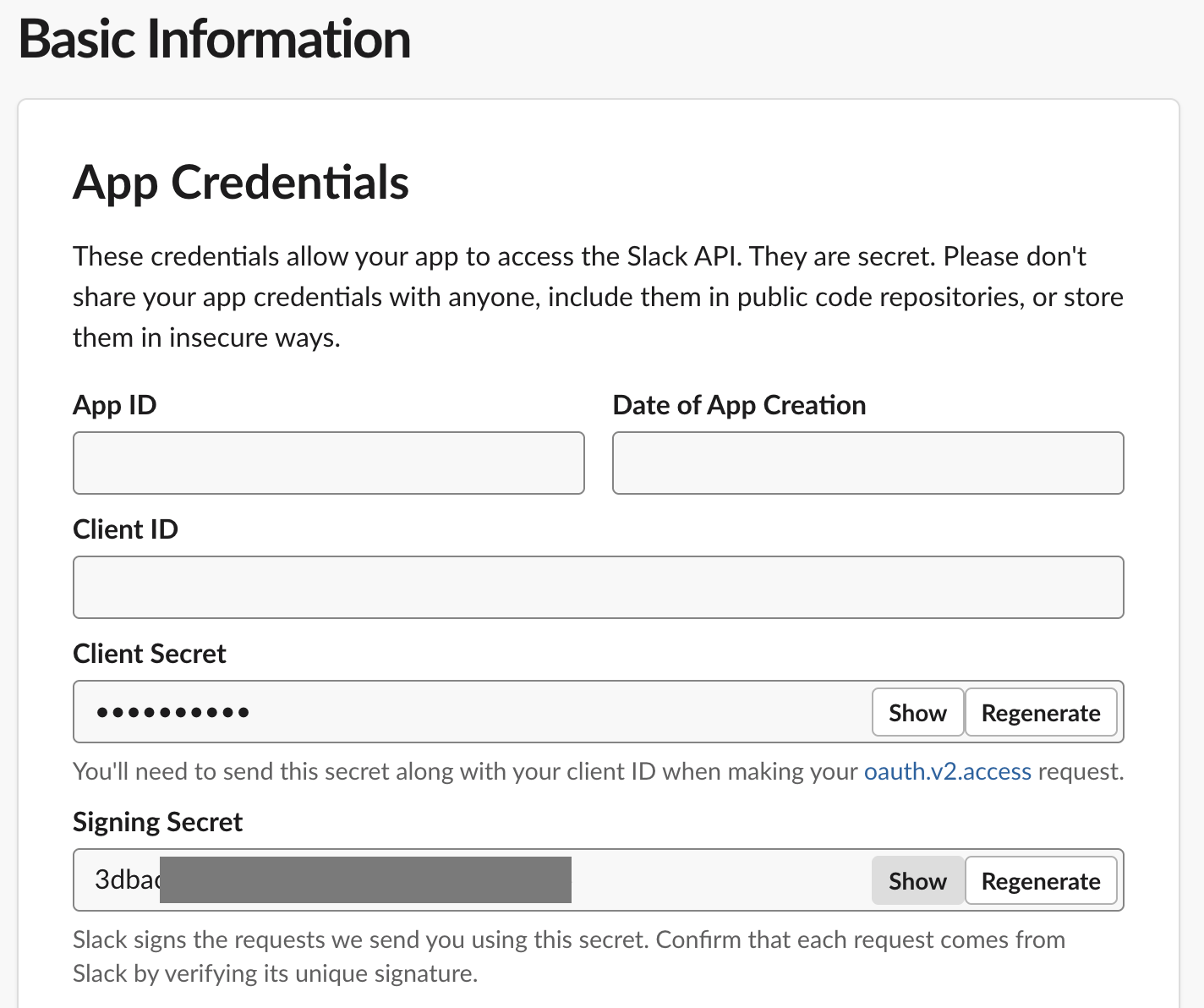
5. Secrets Configuration
Open the relevant configuration modal.
Copy and store the following values securely:
- Signing Secret
Paste these values into your application’s configuration and save them.
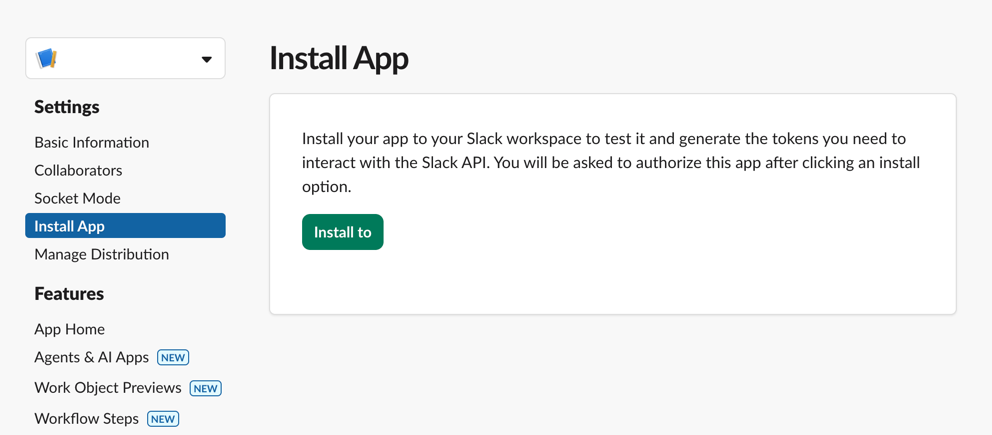
You need to click the “Install App” button in the left sidebar, then install the app to the selected workspace. After the installation is complete, you must copy the OAuth token and provide it to our UI.
6. Using the Bot
You should now see the bot listed under your Slack app.
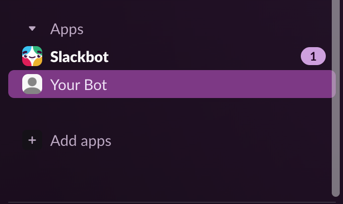
If the bot is not visible:
- Open Slack
- Use the search bar at the top
- Type your bot’s name and select it
Inviting the Bot to a Channel
To interact with the bot in a channel:
- Invite the bot to the channel.
- Send a message mentioning the bot, for example:
text
@botname hiThe bot is now ready to receive and respond to events 🎉