Appearance
Teams Connection Setup Guide
1. Connect Your App
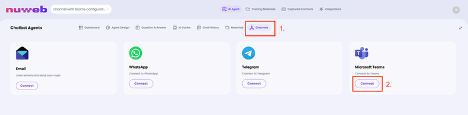
Click on the Channels option in your agent’s menu, then click the Connect button under the Microsoft Teams option.
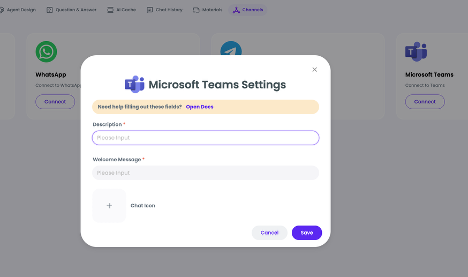
2. You must fill in the required fields in the settings window that appears
| Field | Description |
|---|---|
| Description | Description of your Teams bot. Example: "Support bot for the sales team" |
| Welcome Message | The message that will be sent to users as a greeting. Example: "Hello! How can I help you?" |
| Chat Icon (optional) | You can upload a custom icon for the bot. (Recommended: PNG/JPG, 512x512 pixels) |
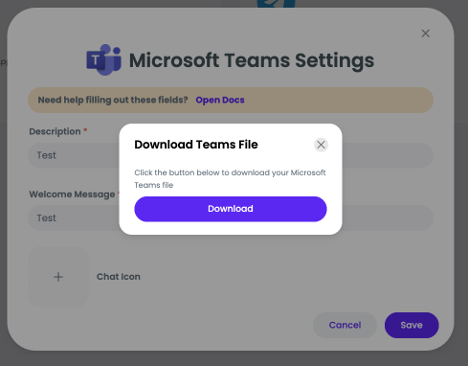
3. After clicking the Save button, your Teams ZIP file will be ready for download
Upload your app
You can upload your app to a team, chat, meeting, or for personal use depending on how you configured your app's scope.
Log in to the Teams client with your Microsoft 365 development account.
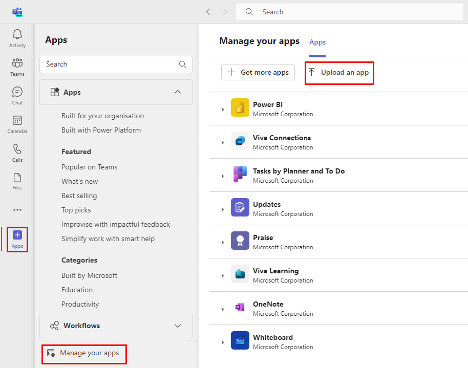
Select Apps > Manage your apps > Upload an app
Select Upload a custom app
Select your app package
.zipfile.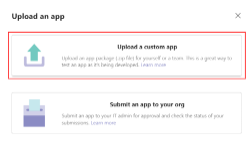
Select Add
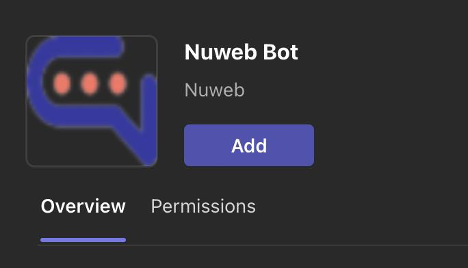
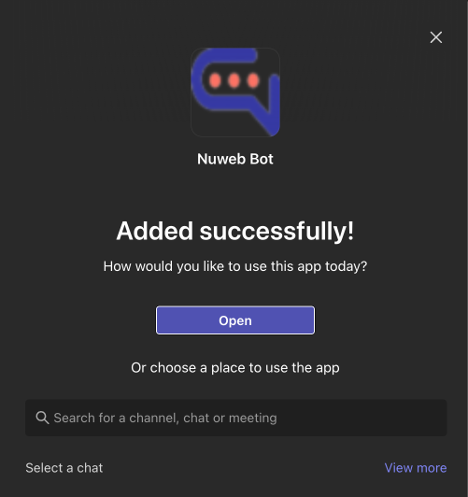
Select Open to open the app in personal scope.