
Appearance
RingCentral Connect Setup Guide
This guide explains how to connect your bot to the platform and enable communication via RingCentral.
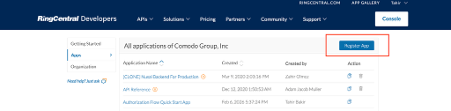
1. Create an App in RingCentral Developer Console
- Go to https://developers.ringcentral.com
- Open the Console
- Click Register App
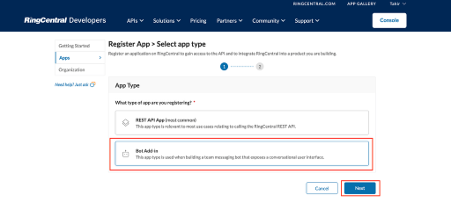
2. Select App Type
- On the App Type page, choose Bot Add-in
- Click Next
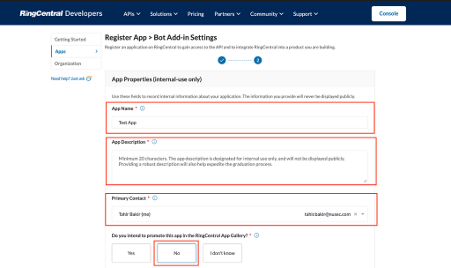
3. Configure Bot Settings
Fill in the following fields on the Bot Settings page:
General
- App Name
- App Description
- Primary Contact
- Do you intend to promote this app in the RingCentral App Gallery? → Select No
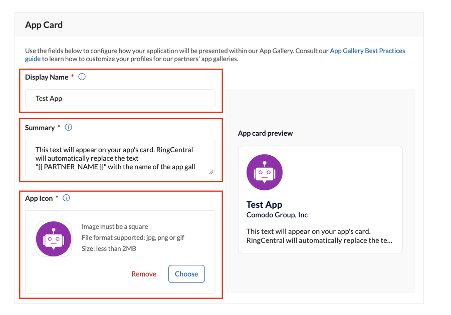
App Card
- Display Name
- Summary
- App Icon
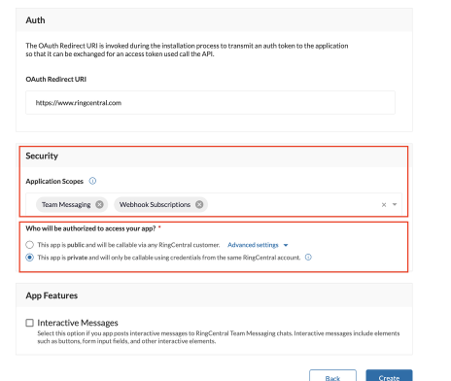
Security
Permissions
- Webhook
- Team Messaging
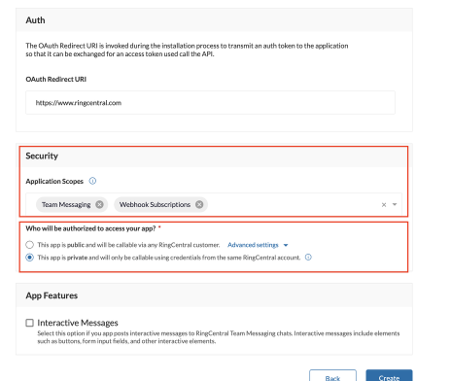
Authorization
- For Who will be authorized to access your app? select:
This app is private and will only be callable using credentials from the same RingCentral account.
After completing all fields, click Create.
4. Connect RingCentral from the AI Platform
- Log in to your AI Platform
- Navigate to the Channels page
- Click Connect for RingCentral
5. Enter Credentials
In the connection modal, fill in the following fields:
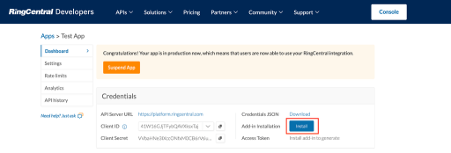
- Client ID
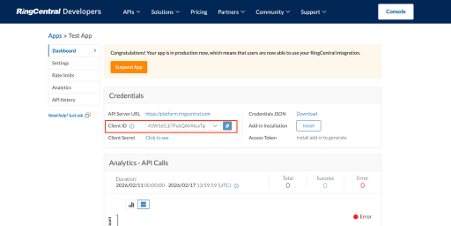
- Client Secret
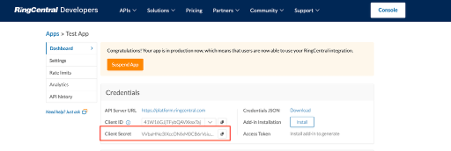
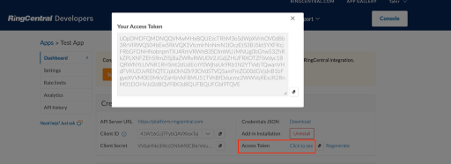
- Access Token
- Bot ID
 How to Find the Bot ID
To obtain your Bot ID, follow these steps:
- Go to https://app.ringcentral.com and open the Messages page.
- Create a new Team (or open an existing one).
- Click Add Members.
- Search for and add the bot you created earlier.
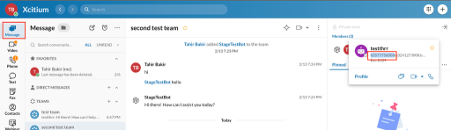
- After adding the bot, click on the bot name in the member list.
- A panel will open showing the bot details.
- Copy the numeric ID shown before the “@” symbol.
- Paste this value into the Bot ID field in your platform’s RingCentral Connect form
After entering all required information, click Connect.
Connection Completed
Once connected successfully, your bot will be able to communicate and interact through RingCentral.